
@Raven There is no settings for this. All selected nodes will snap by design.
The snapping should be clearly indicated and it should happen inside the tolerance set in the panel.
There might be some bug for some special shape or point configuration where the snapping gets it wrong between multiple possibilities
Please send me a file where this brief flash of the snapping target object occurs.
While I'm here, why does VS snap to objects on hidden layers?
It does so by design. Should there be an option for this, or just no snapping for these?
Dragging and snapping a single node works as expected.
Should be able to select multiple nodes (from one or more objects) either manually or by marquee, and when ONE of those nodes is dragged then THAT node should snap to objects/nodes, etc. The other selected nodes should move in sync even though they are not involved in the snapping.
Currently I sometimes see a brief flash of the snapping target object, but only in the precise position of its nodes, not its shape. And only targets on the same layer. No snap action is felt.
Snap to Shape and Snap to Points are both On. Show Indicators is On.
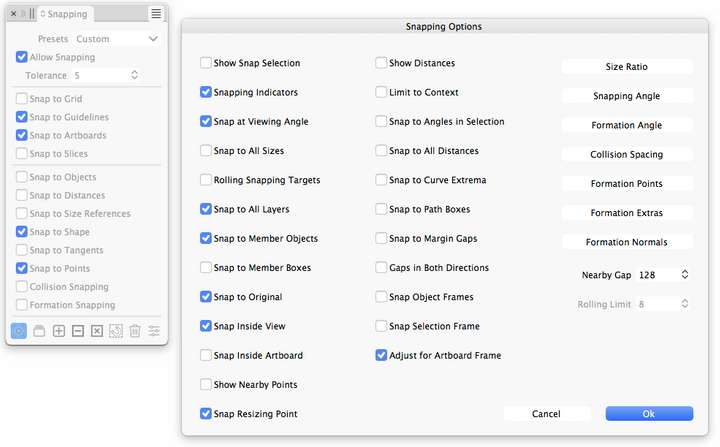
I suspect that VS is trying to find locations where ALL of the selected nodes meet the snapping criteria, not just the dragged node.
Are there settings which govern this?
While I'm here, why does VS snap to objects on hidden layers? Shouldn't they be automatically excluded?

I should have done this sooner.
Upon clean installation of VectorStyler 1.3.006 gradients work fine.
Something was not right with my installation, I guess.
All is good!

As far as I’m aware, these are facts — not just ‘like, my opinion, man’ 
macOS standard shortcuts are ⌘W (close front window) and ⌥⌘W (close all app windows).
Illustrator follows the same pattern.
Right now VectorStyler puts Close View in the File menu and gives it a shortcut that clashes with the macOS default. Also, “Close View” ends up closing the document when it’s the last view, which makes view vs document muddier than it needs to be.
Suggested tidy-up:
- File > Close Document = ⌘W
- Close View should live in the View (or Window) menu alongside the other view-related commands
- Close View should be disabled/greyed out when there’s only one view
- Closing the last view shouldn’t be a “view action” — closing the document should remain a File/⌘W action
Cheers and a late happy New Year!
@Raaskot I will try to replicate these

Thanks, very good
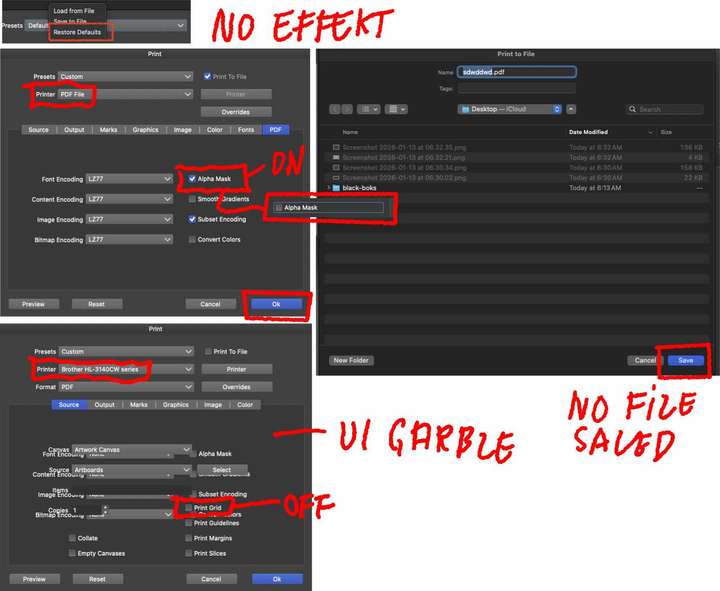
Glad you could replicate it. Yet, before I read your last notices I tested the printer dialog again observing several bugs:
- VS' paper orientation problem (vertical vs. horisontal) on print remains.
- Occationally garbled UI (see dumps)
- File not saved from printer dialog
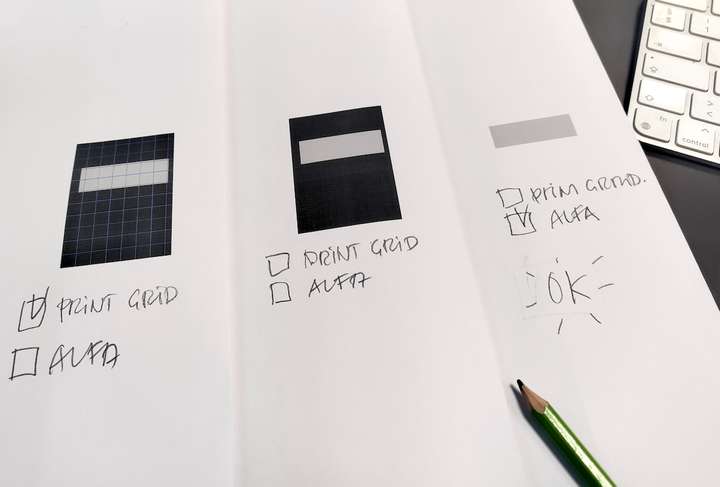
- Persistent black background output
Concerning the latter I made the background work again by chosing:
– change to pdf-driver instead of brother-driver.
– check Alpha Mask under tab PDF
– “Save” (yet resulting no file saved)
– change back to brother-driver (garbled UI)
The Print Grid option was thus switched off and the page printed correctly again. Choosing “Print Grid” recycled the bug.
I have many panels visible, undocked and not iconified. They are on a second screen although the issue still exists if they are on the main screen.
Most have been widened beyond their minimums because otherwise the buttons at the bottom don't all fit.
Every time one of these panels is closed/opened or moved, or if the document is opened or closed, they shrink in width by a few pixels.
Before long they are back to their minimum widths.
It happens even with the default workspace and settings.
MacOS 10.12.6
@VectorStyler Yes, I edited other graphics after performing the move operation. When I executed the move operation again about one minute later, these parameters disappeared.
@Raaskot Can be replicated, the fix will be in the next build.
As a workaround: reseting settings, and starting a new document should fix the issue.